Device Geometry
Introduction
The DeviceGeometry class is the instance that will handle the device
physical characteristics. Currently it handles .gds files, only. It is capable of extending the 2D GDSII description of the
device into a 3D structure that includes handling slanted walls defined in the LayerStack.
It is also the piece of code that handles material meshing given a cloud of points.
It is the last step in the simulation setup prior to configuring the solver settings. It relies mainly on a
LayerStack object, a .gds file and port detection settings.
Considerations
Following are a few considerations to take into account when configuring the device geometry.
The
SetSettingsis the main method for setting up the device geometry;The
SetAutoPortSettingsis the method for setting up the auto port detection settings;It currently support
.gdsfiles, only. But future support to.stlfiles is in order for a future release;It relies on a single
LayerStackand its internalMaterialLibraryto define the properties of the nodes in the simulation region.
Device and Port Buffers
When setting up a DeviceGeometry instance, the user should care
with the device and port buffer definitions. Consider the following figures:
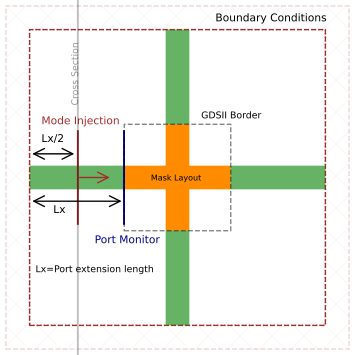
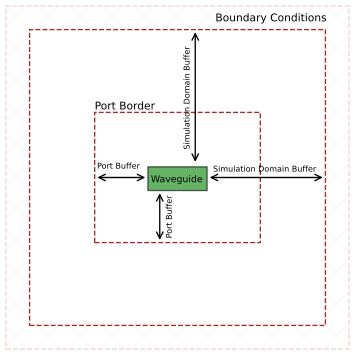
The Top View displays the Mask Layout defined in the raw .gds file. The edges touching the GDSII Border
can be detected as ports, for example, the one on the left. A port will consist of two elements: a monitor and a source.
The Port Monitor is placed precisely at the GDSII Border, while the source for Mode Injection is placed halfway through the
buffers dimension.
The buffers property specify how much empty space will be added/padded
around the Mask Layout to avoid direct touching of the layout with the solver boundary conditions.
The Cross Section view, display a cross section of the port, it includes the other two buffers
as Simulation Domain Buffers. To be flexible in terms of mode calculation, each port detection direction, can contain its own buffer (x, y) values.
The Port Buffers are used to extend the port size the regular waveguide dimension, allowing that the calculated modes are zero at the perimeter defined by the
Port Border. The Port Border will never exceed the Simulation Domain Border.
You can check the complete device geometry example for more details on the Simulation Domain Buffer and the Port Buffer.
Auto Port Detection and Port Numbering
The DeviceGeometry uses an auxiliary GDS tool to detect ports automatically.
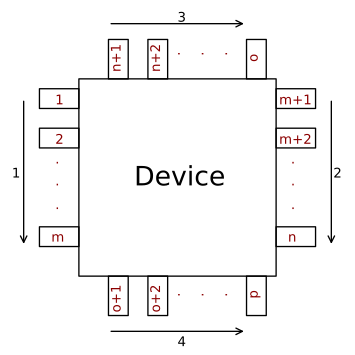
This tool relies on finding two consecutive points that are touching the boundaries of the GDSII file. This detection relies on specifying
the minimum and maximum width of the ports, as well as which edges to detect (e.g., 'X', 'Y'). Once the ports are detected, they follow
the numbering order provided in the following diagram, plus, there is the addition of the 'o' letter to it.
Examples
The following examples will cover some specific settings of the DeviceGeometry
and at the end it aggregates some of the example snippets into a more elaborate setup. That can be used prior instancing a specific EM solver.
For more details, please check the API documentation.
Initial Setup Without Port detection
By default there is no need to detect ports, for example, when using the VFD Mode Solver.
So in this example we present how to instantiate a DeviceGeometry
and then add a wg.gds GDSII file to specify the geometry type.
In this example we are padding the simulation in all directions by 1.5 microns, to add some empty space between the
waveguide and the edges of the simulation region. The SetFromGDS function indicates that the geometry specifications
is done via a static GDSII file (non-parametric structure). The layer_stack argument can be define as presented in the
LayerStack examples.
from pyOptiShared.DeviceGeometry import DeviceGeometry

device_geometry = DeviceGeometry()
device_geometry.SetFromGDS(
    layer_stack=layer_stack,
    gds_file=r"wg.gds",
    buffers={'x':1.5,'y':1.5,'z':1.5}
)
Uniform Grid from the Geometry Bounding Box
Considering the previous waveguide example, we can then extract the bounding box of the device geometry and construct an array of linearly spaced points that we can later identify to which materials they are defined from.
import numpy as np
from pyOptiShared.DeviceGeometry import DeviceGeometry

device_geometry = DeviceGeometry()
device_geometry.SetFromGDS(
    layer_stack=layer_stack,
    gds_file=r"wg.gds",
    buffers={'x':1.5,'y':1.5,'z':1.5}
)

dx = dy = dz = 0.05
bbox = device_geometry.GetBoundingBox(with_buffer=True)
(xmin, xmax), (ymin, ymax), (zmin, zmax) = bbox
xx = np.arange(xmin, xmax, dx)
yy = np.arange(ymin, ymax, dy)
zz = np.arange(zmin, zmax, dz)

XX, YY, ZZ = np.meshgrid(xx, yy, zz, indexing='ij')
points = np.asarray([XX.ravel(), YY.ravel(), ZZ.ravel()]).T
Obtaining a Material Mesh/Permittivity from a Cloud of points
Once the points are determined from device geometry bounding box, we can then retrieve the
material mesh by calling the GetMatVals method.
This mesh contains an array of material numbers. Permittivity values at a particular
wavelength can be obtained using the GetPermittivityMesh method.
from pyOptiShared.LayerInfo import LayerStack
from pyOptiShared.DeviceGeometry import DeviceGeometry
from pyOptiShared.Material import ConstMaterial

import numpy as np

##########################################
###         Material Settings          ###
##########################################
substrate_mat = ConstMaterial("SiO2", epsReal=1.444**2, epsImag=0.0)
core_mat = ConstMaterial("Si", epsReal=3.48**2, epsImag=0.0)

##########################################
###       Layer Stack Settings         ###
##########################################
layer_stack = LayerStack()
layer_stack.AddLayer(number=1,material=core_mat, thickness=0.22, zmin=0, sideWallAng=0, cladding="Air_default")
layer_stack.AddLayer(number=2,material=core_mat, thickness=0.09, zmin=0.0, sideWallAng=0, cladding="Air_default")
layer_stack.SetBGandSub(background="Air_default", substrate=substrate_mat)

lam = 1.55 # um

device_geometry = DeviceGeometry()
device_geometry.SetFromGDS(
    layer_stack=layer_stack,
    gds_file=r"wg.gds",
    buffers={'x':1.5,'y':1.5,'z':1.5}
)

dx = dy = dz = 0.05
bbox = device_geometry.GetBoundingBox(with_buffer=True)
(xmin, xmax), (ymin, ymax), (zmin, zmax) = bbox
xx = np.arange(xmin, xmax, dx)
yy = np.arange(ymin, ymax, dy)
zz = np.arange(zmin, zmax, dz)

nx = xx.shape[0]
ny = yy.shape[0]
nz = zz.shape[0]

XX, YY, ZZ = np.meshgrid(xx, yy, zz, indexing='ij')
points = np.asarray([XX.ravel(), YY.ravel(), ZZ.ravel()]).T

# Get the material and permittivity meshes
material_mesh = device_geometry.GetMatVals(points)
eps,_ = device_geometry.GetPermittivityMesh(points, lam)

# Get back a 3D array of the linear points
shape = (nx,ny,nz)
eps = eps.reshape(shape)

# Plotting real part of epsilon
import matplotlib.pyplot as plt

plt.imshow(np.real(eps[:,:,int(nz/2)]).T,aspect='equal',origin='lower')
plt.show()
Defining Auto Port Settings
Auto port settings are used in auto port detection of ports in GDSII files.
For that we use the SetAutoPortSettings method.
Since it relies on a particular GDSII file, we have to call it after the SetSettings method.
There are four arguments:
directionthat can bex,yorboth. It indicates in which of the Top View bounds the ports should be detected.minandmax, they determine the minimum/maximum port widths to be detected. This can be either a singlefloat(used for both x and y), alist[float, float](x and y independently).port_buffer, that determines how much empty space will be added around the port cross section to properly accomodate mode profiles.It can be a single
float, that will be used for bothxandyports extending by the same quantity both width and height;It can be a
list[float, float]that will be used for bothxandyports extending by the width and height independently; orA more complex
list[float, float]that controls independently width and height for each bounds.
Please, refer to SetAutoPortSettings for more details on the auto port detection settings.
Following is a more complete example, that will be used to detect ports on all sides, with independent width and height buffers.
The GDSII file corresponds to a waveguide crossing (wgcrossing.gds).
from pyOptiShared.LayerInfo import LayerStack
from pyOptiShared.Material import ConstMaterial
from pyOptiShared.DeviceGeometry import DeviceGeometry

##########################################
###         Material Settings          ###
##########################################
myindex1p45 = ConstMaterial(mat_name="myindex1p45", epsReal=1.45**2)
myindex3p5 = ConstMaterial(mat_name="myindex3p5", epsReal=3.5**2)

##########################################
###       Layer Stack Settings         ###
##########################################
layer_stack = LayerStack()
layer_stack.AddLayer(name="L1", number=1, thickness=0.25, zmin=0.0,
                    material=myindex3p5,cladding=myindex1p45)
layer_stack.AddLayer(name="L2", number=2, thickness=0.25, zmin=0.25,
                    material=myindex3p5,cladding=myindex1p45)
layer_stack.SetBGandSub(background=myindex1p45, substrate=myindex1p45)

##########################################
###   Device Geometry/Port Settings    ###
##########################################
device_geometry = DeviceGeometry()
device_geometry.SetFromGDS(
    layer_stack=layer_stack,
    gds_file=r"wgcrossing.gds",
    buffers={'x':1.5,'y':1.5,'z':1.5}
    )
device_geometry.SetAutoPortSettings(
    direction="both",
    port_buffer=[[2, 1.5],[1.5, 1.25]], # [[x_width, x_height],[y_width, y_height]]
    min=[0.2, 0.21], # [x_min, y_min]
    max=[0.51, 0.51], # [x_max, y_max]
)

device_geometry.PrintPorts()
Defining Ports Manually
For more control over ports definitions, it is possible to manually define ports by using PortInfo.
The GDSII file corresponds to the waveguide in this example (wg_ex.gds).
from pyOptiShared.LayerInfo import LayerStack
from pyOptiShared.Material import ConstMaterial
from pyOptiShared.DeviceGeometry import DeviceGeometry
from pyOptiShared.PortInfo import PortInfo
from pyFDTDKernel.pyFDTDSolver import pyFDTDSolver
import gdstk

##########################################
###             WG GDS File            ###
##########################################
filename = "wg.gds"

length = 2
width1 = 0.5

lib = gdstk.Library()

strt_wg = lib.new_cell("Straight_WG")
vertices1 = [(0, -width1/2), (length, -width1/2), (length, width1/2), (0, width1/2)]

strt_wg.add(gdstk.Polygon(vertices1, layer=1))

lib.write_gds(filename)

##########################################
###         Material Settings          ###
##########################################
SiO2 = ConstMaterial(mat_name="SiO2", epsReal=1.45**2)
Si = ConstMaterial(mat_name="Si", epsReal=3.5**2)

##########################################
###       Layer Stack Settings         ###
##########################################
layer_stack = LayerStack()
layer_stack.AddLayer(name="L1", number=1, thickness=0.25, zmin=0.0,
                    material=Si,cladding=SiO2)
layer_stack.AddLayer(name="L2", number=2, thickness=0.25, zmin=0.25,
                    material=Si,cladding=SiO2)
layer_stack.SetBGandSub(background=SiO2, substrate=SiO2)

##########################################
###   Device Geometry/Port Settings    ###
##########################################
device_geometry = DeviceGeometry()
device_geometry.SetFromGDS(
    layer_stack=layer_stack,
    gds_file=filename,
    buffers={'x':1.5,'y':1.5,'z':1.5})

port0=PortInfo(lines=[[(0.0,-0.25),(0.0,0.25)]],layer_number=1,orientation=180,mode_number=0,buffer=[1.0,1.0])
port1=PortInfo(lines=[[(2.0,-0.25),(2.0,0.25)]],layer_number=1,orientation=0,mode_number=0,buffer=[1.0,1.0])

device_geometry.AddPort(port0)
device_geometry.AddPort(port1)

# General Simulation Settings and Simulation Run
lmin = 1.5
lmax = 1.6
lcen = (lmax+lmin)/2
npts=21
tfinal = 550
fdtd_solver = pyFDTDSolver()
fdtd_solver.SetExcitation(profile="gaussian-pw", lcenter=lcen, lmin=lmin, lmax=lmax, npts=npts, mode_indices = 0,symmetries='1x1')
fdtd_solver.AddDFTMonitor(mon_type="2d-z-normal", z0=0.11, name="MyDFTMonitor1",
                                                      lmin=lmin, lmax=lmax,npts=npts,
                                                      save_hz=True)
fdtd_solver.SetSimSettings(sim_time=tfinal, space_step=0.05, subpixel_level=2, results_path=r"results",device_name=filename,
                                                      device_geometry = device_geometry,auto_shutoff_limit=1e-3,export_mat_grid=True)
results = fdtd_solver.Run()
results.PlotSParameters()
results.PlotPermittivity(position=0.11)
For devices that spans more than one layer, manual definition of ports is still possible by using update.
The GDSII file corresponds to the waveguide in this example (wg.gds).
from pyOptiShared.LayerInfo import LayerStack
from pyOptiShared.Material import ConstMaterial
from pyOptiShared.DeviceGeometry import DeviceGeometry
from pyOptiShared.PortInfo import PortInfo
from pyFDTDKernel.pyFDTDSolver import pyFDTDSolver
import gdstk

##########################################
###             WG GDS File            ###
##########################################
filename = "wg.gds"

length = 2
width1 = 0.5
width2 = 2

lib = gdstk.Library()

strt_wg = lib.new_cell("Straight_WG")
vertices1 = [(0, -width1/2), (length, -width1/2), (length, width1/2), (0, width1/2)]
vertices2 = [(0, -width2/2), (length, -width2/2), (length, width2/2), (0, width2/2)]

strt_wg.add(gdstk.Polygon(vertices1, layer=2))
strt_wg.add(gdstk.Polygon(vertices2, layer=1))

lib.write_gds(filename)

##########################################
###         Material Settings          ###
##########################################
myindex1p45 = ConstMaterial(mat_name="myindex1p45", epsReal=1.45**2)
myindex1p55 = ConstMaterial(mat_name="myindex1p55", epsReal=1.55**2)
myindex3p5 = ConstMaterial(mat_name="myindex3p5", epsReal=3.5**2)

##########################################
###       Layer Stack Settings         ###
##########################################
layer_stack = LayerStack()
layer_stack.AddLayer(name="L1", number=1, thickness=0.25, zmin=0.0,
                    material=myindex3p5,cladding=myindex1p45)
layer_stack.AddLayer(name="L2", number=2, thickness=0.25, zmin=0.25,
                    material=myindex3p5,cladding=myindex1p45)
layer_stack.SetBGandSub(background=myindex1p45, substrate=myindex1p45)

##########################################
###   Device Geometry/Port Settings    ###
##########################################
device_geometry = DeviceGeometry()
device_geometry.SetFromGDS(
    layer_stack=layer_stack,
    gds_file=r"wg.gds",
    buffers={'x':1.5,'y':1.5,'z':1.5}
    )

port0=PortInfo(lines=[[(0.0,-0.25),(0.0,0.25)]],layer_number=2,orientation=180,mode_number=0,buffer=[1.0,1.0])
port0.update(lines=[[(0.0,-1.0),(0.0,1.0)]],layer_number=1) # add another cut in a different layer

port1=PortInfo(lines=[[(2.0,-0.25),(2.0,0.25)]],layer_number=2,orientation=0,mode_number=0,buffer=[1.0,1.0])
port1.update(lines=[[(2.0,-1.0),(2.0,1.0)]],layer_number=1) # add another cut in a different layer

device_geometry.AddPort(port0)
device_geometry.AddPort(port1)
device_geometry.PrintPorts()

# General Simulation Settings and Simulation Run
lmin = 1.5
lmax = 1.6
lcen = (lmax+lmin)/2
npts=21
tfinal = 550
fdtd_solver = pyFDTDSolver()
fdtd_solver.SetExcitation(profile="gaussian-pw", lcenter=lcen, lmin=lmin, lmax=lmax, npts=npts, mode_indices = 0,symmetries='1x1')
fdtd_solver.AddDFTMonitor(mon_type="2d-z-normal", z0=0.11, name="MyDFTMonitor1",
                                                      lmin=lmin, lmax=lmax,npts=npts,
                                                      save_hz=True)
fdtd_solver.SetSimSettings(sim_time=tfinal, space_step=0.05, subpixel_level=2, results_path=r"results",device_name='wg',
                                                      device_geometry = device_geometry,auto_shutoff_limit=1e-3,export_mat_grid=True)
results = fdtd_solver.Run()
results.PlotSParameters()
results.PlotPermittivity(cut='x',position=-0.5)
results.PlotPermittivity(cut='x',position=0.5)
results.PlotPermittivity(position=0.11)
Importing GDSII File
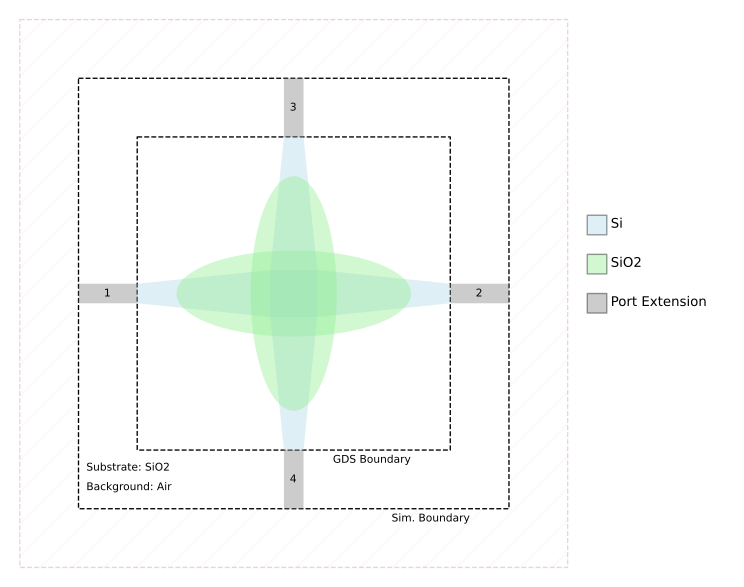
The following example shows a complete setup with visualization of the device
geometry using the PlotGDS method.
The GDSII file corresponds to a waveguide crossing (wgcrossing.gds)
from pyOptiShared.DeviceGeometry import DeviceGeometry
from pyOptiShared.LayerInfo import LayerStack
from pyOptiShared.Material import ConstMaterial

si02_mat = ConstMaterial(mat_name="SiO2", epsReal=1.45**2,color='lightgreen')
si_mat = ConstMaterial(mat_name="Si", epsReal=3.5**2,color='lightblue')
air_mat = ConstMaterial(mat_name="Air", epsReal=1**2,color='lightyellow')
layer_stack = LayerStack()

layer_stack.addLayer(name="L1", number=1, thickness=0.22, zmin=0.0,
                    material=si_mat, cladding=si02_mat,
                    sideWallAng=20)
layer_stack.addLayer(name="L2", number=2, thickness=0.22, zmin=0.0,
                    material=si02_mat, cladding=si02_mat,
                    sideWallAng=0)

layer_stack.setBGandSub(background=air_mat, substrate=si02_mat)

device_geometry = DeviceGeometry()
device_geometry.SetFromGDS(
    layer_stack=layer_stack,
    gds_file='wgcrossing.gds',
    buffers={'x':1.5,'y':1.5,'z':1.5}
)


device_geometry.SetAutoPortSettings(
    direction="both",
    port_buffer=1.5,
)

device_geometry.PlotGDS()
Importing STL File
It is possible to visualize the STL files in 3D. The example below shows how to load an stl file (coupler.stl) and visualize
the device in 3D using PlotSTL
from pyOptiShared.DeviceGeometry import DeviceGeometry
from pyOptiShared.Material import ConstMaterial

si02_mat = ConstMaterial(mat_name="SiO2", epsReal=1.45**2,color='lightgreen')
si_mat = ConstMaterial(mat_name="Si", epsReal=3.5**2,color='lightblue')
air_mat = ConstMaterial(mat_name="Air", epsReal=1**2,color='lightyellow')


device_geometry = DeviceGeometry()
stl_dict = dict()
stl_dict['coupler.stl'] = si_mat

device_geometry.SetFromSTL(
        stl_dict=stl_dict,
        buffers={'x':1.0,'y':1.0,'z':1.0},
        background_material=air_mat,substrate_material=si02_mat
    )


device_geometry.SetAutoPortSettings(
        direction="x",
        port_buffer=1.5,
    )

device_geometry.PlotSTL()
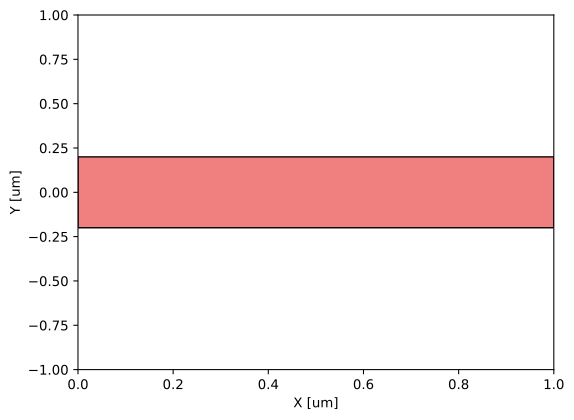
It is possible to set the geometry from a function.
The example below shows how to define a function and use it to configure DeviceGeometry
The output of the function should be the vertices as a list and the layer number as shown in the example.
from pyOptiShared.DeviceGeometry import DeviceGeometry
from pyOptiShared.LayerInfo import LayerStack
from pyOptiShared.Material import ConstMaterial
from pyFDTDKernel.pyFDTDSolver import pyFDTDSolver

import matplotlib.pyplot as plt
from matplotlib.patches import Polygon


si02_mat = ConstMaterial(mat_name="SiO2", epsReal=1.45**2,color='lightgreen')
si_mat = ConstMaterial(mat_name="Si", epsReal=3.5**2,color='lightblue')
air_mat = ConstMaterial(mat_name="Air", epsReal=1**2,color='lightyellow')

layer_stack = LayerStack()

layer_stack.AddLayer(name="L1", number=1, thickness=0.22, zmin=0.0,
                        material=si_mat, cladding=si02_mat,
                        sideWallAng=20)


layer_stack.SetBGandSub(background=air_mat, substrate=si02_mat)

device_geometry = DeviceGeometry()

def waveguide(port_width=0.4,waveguide_length=1.00,input_port_center=(0,0),layer=1):
    vertices=[(input_port_center[0],input_port_center[1]-(port_width/2)),
                (input_port_center[0]+waveguide_length,input_port_center[1]-(port_width/2)),
                (input_port_center[0]+waveguide_length,input_port_center[1]+(port_width/2)),
                (input_port_center[0],input_port_center[1]+(port_width/2))]

    return [(vertices,layer)]

parameters=(0.4,1.00,(0,0),1) # (port_width,waveguide_length,input_port_center,layer)

WG1=waveguide(*parameters)
vertices=WG1[0][0]

fig, ax = plt.subplots()
polygon = Polygon(vertices, closed=True, facecolor="lightcoral", edgecolor="black")
ax.add_patch(polygon)
plt.ylim([-1,1])
plt.show()

device_geometry.SetFromFun(func=waveguide
                   ,layer_stack=layer_stack
                   ,parameters=parameters
                   ,buffers={'x':1.5,'y':1.5,'z':1.5}
                   )

# Automatically detect ports along the x-direction
device_geometry.SetAutoPortSettings(
   direction='x',
   port_buffer=1.0
)

# General Simulation Settings and Simulation Run
lmin = 1.5
lmax = 1.6
lcen = (lmax+lmin)/2
npts=21
tfinal = 550
fdtd_solver = pyFDTDSolver()
fdtd_solver.SetExcitation(profile="gaussian-pw", lcenter=lcen, lmin=lmin, lmax=lmax, npts=npts, mode_indices = 0,symmetries='1x1')
fdtd_solver.AddDFTMonitor(mon_type="2d-z-normal", z0=0.11, name="MyDFTMonitor1",
                                                      lmin=lmin, lmax=lmax,npts=npts,
                                                      save_hz=True)
fdtd_solver.SetSimSettings(sim_time=tfinal, space_step=0.05, subpixel_level=2, results_path=r"results",device_name='wg',
                                                      device_geometry = device_geometry,auto_shutoff_limit=1e-3,export_mat_grid=True)
results = fdtd_solver.Run()
results.PlotSParameters()
results.PlotPermittivity(position=0.11)
A Complete Device Geometry Setup
This example uses the information provided in the previous examples to construct a
full instantiation and setup of a LayerStack.
This example is useful for simulations using the pyFDTD Solver or
the VFD Mode Solver. It starts by configuring some materials, creating the layer stack
and finally setting up the DeviceGeometry. The device
under characterization is a dielectric waveguide (wg.gds).
import numpy as np
from pyOptiShared.LayerInfo import LayerStack
from pyOptiShared.Material import ConstMaterial
from pyOptiShared.DeviceGeometry import DeviceGeometry

##########################################
###         Material Settings          ###
##########################################
myindex1p45 = ConstMaterial(mat_name="myindex1p45", epsReal=1.45**2)
myindex3p5 = ConstMaterial(mat_name="myindex3p5", epsReal=3.5**2)

##########################################
###       Layer Stack Settings         ###
##########################################
layer_stack = LayerStack()
layer_stack.addLayer(name="L1", number=1, thickness=0.25, zmin=0.0,
                    material=myindex3p5,cladding=myindex1p45)
layer_stack.addLayer(name="L2", number=2, thickness=0.25, zmin=0.25,
                    material=myindex3p5,cladding=myindex1p45)
layer_stack.setBGandSub(background=myindex1p45, substrate=myindex1p45)

##########################################
###   Device Geometry/Port Settings    ###
##########################################
device_geometry = DeviceGeometry()
device_geometry.SetFromGDS(
    layer_stack=layer_stack,
    gds_file=r"wg.gds",
    buffers={'x':1.5,'y':1.5,'z':1.5}
)
device_geometry.SetAutoPortSettings(
    direction="x",
    port_buffer=1.0,
)
Device Geometry
This class handles the geometry of the device under simulation. |
|
|
This class is used to define and hold all the information related to a single port, including the location, orientation, layer number, and mode number. |